If you came looking for image to stl to make a printable model, this article covers a related conversion problem: checking size and geometry before a slicer. It explains why a SketchUp DAE-to-FBX export may look too large or lose textures, and when a print-oriented conversion is more appropriate.
If a SketchUp model arrives in FBX at the wrong size, check the scale shown before conversion—not just the settings in the app where you open it. If its textured surfaces turn into flat colors, that may be the expected FBX output rather than a failed conversion.
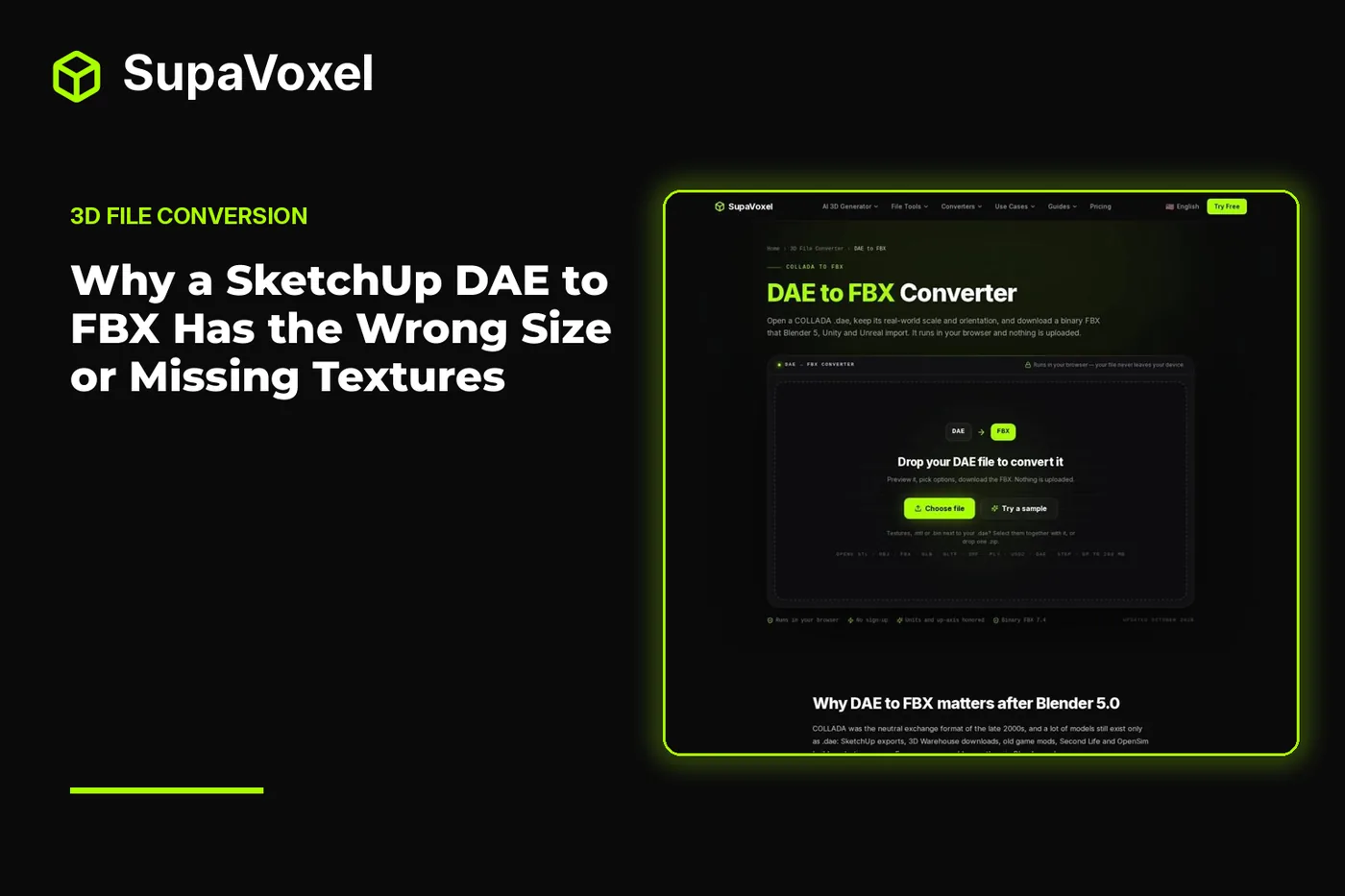
The short version
- A SketchUp DAE can declare its unit in the file. The converter applies that unit when it reads the model, so changing File units to inches may apply the conversion twice.
- Leave File units on m, inspect Output size, and use Scale only if you deliberately need a different-sized model.
- Supply the image files alongside the DAE to see textures in the preview. The exported FBX does not embed those images: it keeps UVs and gives each material a color based on its texture.
- If the destination needs the original texture images, consider OBJ instead. If the destination is a slicer, use a print-oriented conversion and expect to check the geometry as well as the scale.
Diagnose the size before changing File units
The useful question is not “Did SketchUp use inches?” It is “What size has the converter already read?” A COLLADA file can declare both its unit and its up axis. When you open a SketchUp export in SupaVoxel’s DAE to FBX converter, the reader applies those declarations before you adjust the output. The scene is in meters at that point.

The converter provides a size readout to check before exporting the FBX.
Here is the order I use when a converted model looks enormous or tiny:
- Open the original DAE. Keep File units at its default m, even if the SketchUp model was drawn in inches. The inch declaration in the DAE has already been accounted for.
- Read Output size before touching Scale. Compare a recognizable dimension with what you know about the source. A full-size building should read as a full-size building here, not as a tabletop model.
- Decide whether you want the real size or a model size. For a game or visualization scene, you may want to preserve the building’s real dimensions. For a scale model, calculate the reduction you intend and apply it deliberately with Scale.
- Convert, then check the imported result. The download is binary FBX 7.4. If its size matched your expectation in the converter but not in the destination, check that destination’s import-unit settings before changing the DAE conversion and exporting again.
For example, a building drawn at full size is not “too big” merely because it will not fit on a print bed. That is a scale-model decision, not evidence that the DAE was misread. Conversely, if the converter’s size readout is already implausible, check the source dimensions before trying to fix the result by guessing at unit settings.
The converter also reads the DAE’s up-axis declaration. It writes a Y-up FBX, with each scene node’s transform baked into its mesh. An orientation change after import can therefore be a destination-setting issue rather than a reason to rotate the source geometry again.
Why the preview has textures but the FBX does not
A DAE commonly refers to image files stored beside it; it does not contain those JPG or PNG images. If you provide only the .dae, the converter may have the mesh, material information and UV coordinates but not the pictures needed to display its surfaces. Select the images together with the DAE, or drop a zip of the export folder, to make them available to the preview.
That solves previewing, not embedding. The DAE to FBX writer does not put the texture images into the downloaded FBX. Instead, each FBX material receives a diffuse color taken from its texture’s average color. UV coordinates survive, so the surface still has the mapping information needed to place an image later.
This distinction explains a common result: the building has the right shape, the preview shows brick or roof detail, and the FBX opens with solid-colored walls and roof. The detailed image has not been baked into the geometry, and a single material color cannot reproduce it. Nothing about supplying more image files changes what this FBX writer exports.
Before calling the conversion broken, inspect what survived. If the walls are present and colored but lack brick detail, you are seeing the material-color limit. If a whole part is absent, that is a different geometry problem. If the shape is present but on its side, investigate the importing app’s axis handling.
Put the original images back to work
Keep the DAE export folder until you have checked the destination scene. Its image files are the assets you need if you want the FBX to look like the textured preview. After import, assign the original images to the appropriate FBX materials in your modeling or rendering app and check their placement against the preserved UVs.
Do this material by material rather than assuming the flat FBX colors identify every surface unambiguously. A roof image and a wall image can produce similar average colors while carrying very different details. Look at the source folder and the model together, then confirm the result on the actual mesh.
There is also a limit to what this workflow can rescue. The FBX conversion keeps static meshes, material colors and UVs, but drops skins, bones, animation and physics. Skinned geometry is written in its bind pose. If your DAE is an animated character or a moving scene, restoring image files will not restore its motion. The size-and-texture checks in this guide are for a static building or prop.
Choose a different output when the job calls for it
FBX is useful when the destination expects an FBX scene, but it is not the best answer to every missing-texture complaint. If you need an exchange file that carries links to supplied image files, SupaVoxel’s DAE to OBJ converter is the more relevant route. With Include materials & textures on and the images supplied, it produces a zip containing the OBJ, its MTL material file and linked PNG images.

The OBJ conversion route is useful when you need the supplied image textures alongside the mesh.
That choice has its own scale check. The OBJ converter applies the DAE’s declared unit and writes the geometry in meters, upright under a Y-up convention. OBJ itself does not declare units, so confirm how the receiving app interprets those numbers. The OBJ route also keeps geometry instances as separate objects; the FBX route writes a model for each mesh.
If the actual goal is a physical print, color may not matter at all. SupaVoxel’s DAE to STL converter applies the DAE unit and produces an STL in millimeters, with a Z-up printing option. STL drops materials and textures, and the conversion merges meshes. That gets the file into a slicer, but it does not make a display model printable: thin single faces, open edges and overlapping components can still prevent a clean slice. Give those parts thickness and repair the resulting geometry where needed.
Choose the format for the next task, not for the file extension you happen to have. FBX material colors may be sufficient for a background building. Linked images may make OBJ more practical for a textured static asset. STL is for checking and preparing the printable shape.
When the starting point is an image instead
Sometimes a SketchUp DAE is being used as a stand-in because there is no usable model of the building you want. In that case, conversion settings cannot fix missing source geometry. SupaVoxel’s 3D architecture models guide covers making a concept mesh from a building render, sketch or photo instead of converting an existing DAE.
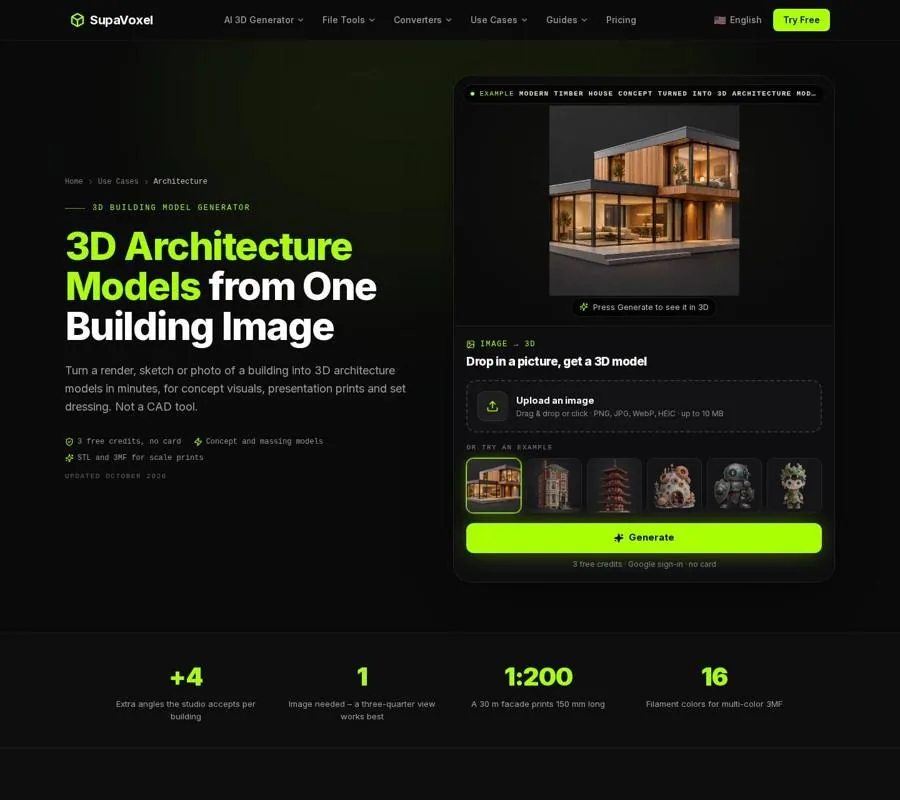
The architecture page describes an image-to-model route for concept buildings, rather than conversion of an existing SketchUp file.
That is a different kind of result. An image-based model predicts the sides the picture does not show; it does not recover measured dimensions or editable CAD walls and windows. Use it for concept visuals, context or a recognizable scale print—not to replace an accurately modeled building. If you already have the SketchUp geometry, diagnosing its unit and preserving its original image files is the more dependable first move.
FAQ
Should I set File units to inches for a SketchUp DAE?
Usually not. The converter reads the unit declared in the DAE and applies it on load. Leave File units on m, check Output size, and change Scale only when you intend to resize the model.
Why did adding the texture folder fix the preview but not the FBX?
The images let the preview display the DAE’s referenced textures. The FBX export does not embed them; it keeps UVs and writes an average color for each textured material. Assign the original images to the FBX materials after import if you need their detail.
Can I use the FBX directly for a scale print?
Check the intended print dimensions and geometry first. For a slicer, the DAE to STL route writes millimeters and drops color, but a building made from thin faces or open geometry may still need thickness and repair before it slices cleanly.