Readers searching for image to stl can use this guide to understand how GLB packages a textured glTF model. It covers the files to keep together and the checks to make after conversion.
Packaging a glTF model as GLB keeps the same scene data while replacing a scattered set of files with one binary container. The important part is collecting every referenced buffer and image before conversion, then checking the finished file in a viewer.
The short version
- A
.gltfis readable JSON that usually points to a.binbuffer and separate texture images; a.glbputs the JSON and binary data into one file. - Select the
.gltf, its.bin, and every referenced texture together, or zip the complete folder before converting. - Keep Keep textures enabled unless you deliberately want a geometry-only GLB.
- Open the finished GLB in a viewer and confirm the materials, textures, mesh, and animation clips appear as expected.
What GLB changes—and what it does not
The key idea behind GLB vs glTF is that these are two packages for the same glTF 2.0 scene data. A separate glTF has a JSON scene description, usually a .bin file containing geometry, and image files referenced by paths in the JSON. A GLB combines the JSON and binary data into one container.
That packaging change does not turn a textured model into a different kind of model. Meshes, node hierarchy, PBR materials, textures, skins, morph targets, and animation data can move into the GLB. The practical difference is file management: a GLB has one file to copy, upload, email, or place in a web project.
A GLB begins with a 12-byte header, followed by a JSON chunk and a binary chunk. The binary chunk holds vertex positions, normals, UVs, indices, animation keyframes, and usually the texture images. The .gltf version leaves the JSON readable in a text editor, while the .glb version is more convenient for delivery.
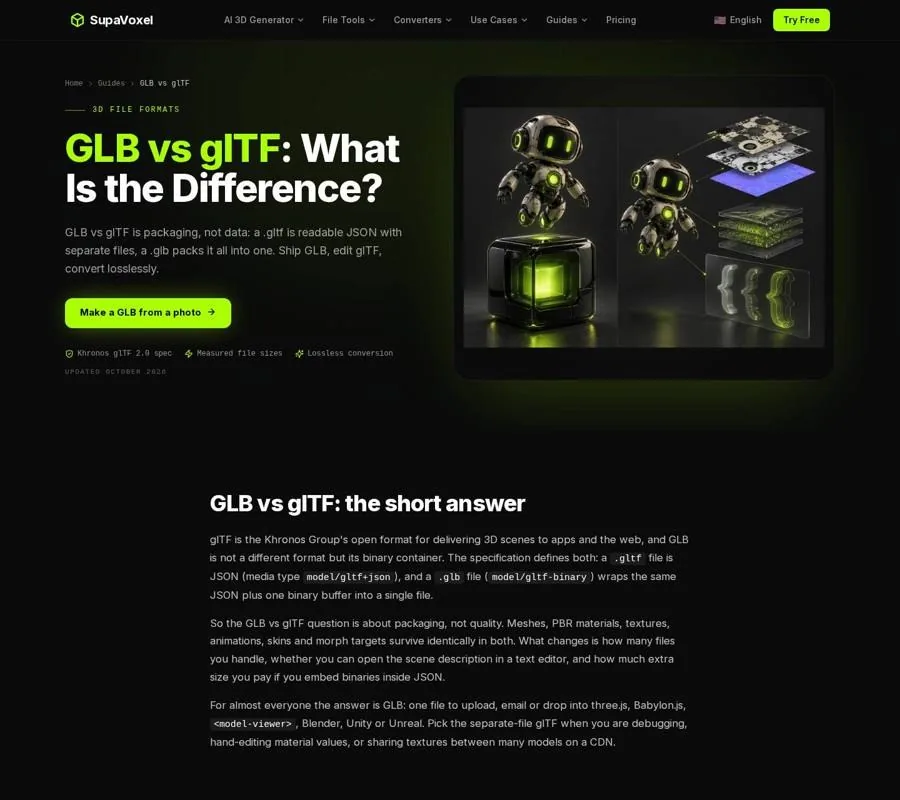
The guide explains how GLB and glTF package the same glTF 2.0 scene data.
There is also a size reason to avoid embedded base64 glTF when a GLB will do. Embedding binary data inside JSON adds about 33% overhead to that binary data. A separate-file glTF can have roughly the same total size as a GLB, but it spreads the content across several files. The GLB advantage is usually one reliable package rather than a smaller model by itself.
Gather the complete source package
Before converting, inspect the glTF package and identify what the JSON references. A typical separate-file download contains:
- The
.gltfJSON file - One
.binfile containing geometry - One or more PNG or JPEG texture images
- Any subfolders named in the image or buffer paths
The .gltf file alone is not necessarily the model. It is the instruction sheet that tells a loader where to find the geometry and images. If the buffer is separate, the converter needs that .bin file to build the GLB. A missing .bin stops the conversion and produces a message naming the missing file.
Missing textures behave differently: the conversion can continue, but the converter lists the missing images. Treat that warning seriously. The resulting GLB may load with the mesh present but without the intended surface appearance.
There are two safe ways to prepare the input:
- Select the
.gltf,.bin, and texture images together in the file picker. - Zip the complete folder and use the zip as the input.
A folder itself cannot be dragged directly into the converter, so zipping is the better choice when the package contains subfolders. Files are matched by name, and paths written by an exporter do not need to match the original absolute folders. The important requirement is that every referenced file is included in the selected files or the zip.
If the glTF is embedded, the JSON already contains its binary data and images as base64. That version can be supplied by itself, although it may be larger than a GLB because of the base64 overhead.
Convert glTF to GLB
The browser-based glTF to GLB converter is designed for this exact packaging step. It runs on the device, so the source model is not uploaded. The converter is free, requires no sign-up, has no conversion limit, and accepts a model file or zip up to 200 MB.
- Add the source files. Select the
.gltf, its.bin, and the texture images together. Alternatively, drop a zip containing the complete folder. An embedded.gltfcan be used on its own. - Review the detected contents. The panel lists the side files it read, along with triangle, texture, and animation information. Confirm that the expected texture files appear before converting.
- Keep textures enabled. The Keep textures option is on by default. Leave it enabled for a finished asset with its materials and images. Turn it off only when you intentionally need a geometry-and-color GLB for blocking out a scene or creating a collision mesh.
- Convert the package. Press Convert to GLB. The converter reports the size before and after conversion, then downloads the result automatically.
- Rename the result clearly. Use a model name that distinguishes the packaged file from the source folder. This prevents accidentally sending the original JSON without its supporting files.
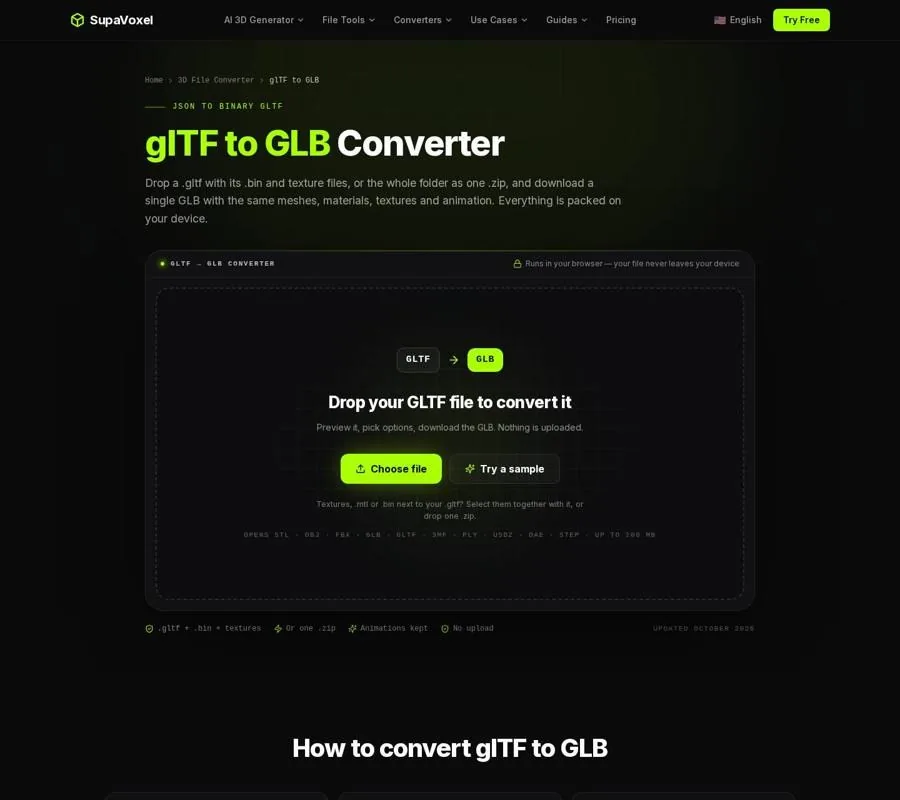
The converter accepts a glTF package or zip, shows the files it found, and keeps textures by default.
The conversion keeps meshes, nodes, hierarchy, PBR materials, textures, vertex colors, UVs, normals, animation clips, skins, units, and axis orientation. glTF uses meters and Y-up, and those values remain unchanged in the GLB.
One detail can affect the output size. If the source glTF uses Draco or meshopt geometry compression, the converter decodes that geometry while reading it and writes the GLB with uncompressed buffers. The packaged file can therefore be larger than the compressed source. That is not texture loss; it is a change in geometry compression. A GLB compressor can be used afterward when download size matters.
Check the packaged model in a viewer
Never assume a successful download means the asset is ready to ship. Open the GLB in a glTF viewer and inspect it from several angles.
Start with the material appearance. Look for the expected base colors, roughness, metallic response, and texture detail. A model that appears gray or white may have loaded its geometry while failing to resolve one or more images. Compare the result with the original glTF before moving on.
Next, check the mesh structure. Confirm that separate objects are still present and that the node hierarchy behaves as expected. If the model is animated, play its clips and check the skin deformation. Animation clips and skins are kept during this conversion, so a missing animation deserves investigation rather than acceptance.
Finally, check the file in the target environment. A GLB can be opened by common web and engine workflows, including three.js, Babylon.js, Godot, and Unity. If the model is intended for a marketplace or a web page, test the exact downloaded file rather than a source file from the original folder.
A useful habit is to keep the source folder beside the finished GLB until the verification is complete. Once the GLB displays correctly and the animation plays, the separate files are no longer needed for delivery.
When you need to unpack the GLB again
A GLB is convenient for shipping but less convenient for hand editing. If I need to inspect JSON, change a material value, rename a node, replace a texture, or compare revisions in version control, I use the GLB to glTF converter.
It offers two output forms:
- Single file, embedded — one
.gltfwith buffers and images inlined as base64 - Separate files — a zip containing the
.gltf,.bin, and each texture image
The separate-file option is usually better for editing. Texture images can be opened in an image editor, and the JSON can be read or compared as text. Keep the extracted files together afterward because the JSON points to the buffer and images with relative paths.
The embedded option is useful for quick inspection or tools that need one text file, but base64 increases the binary portion by about 33%. It also makes direct texture editing less practical.
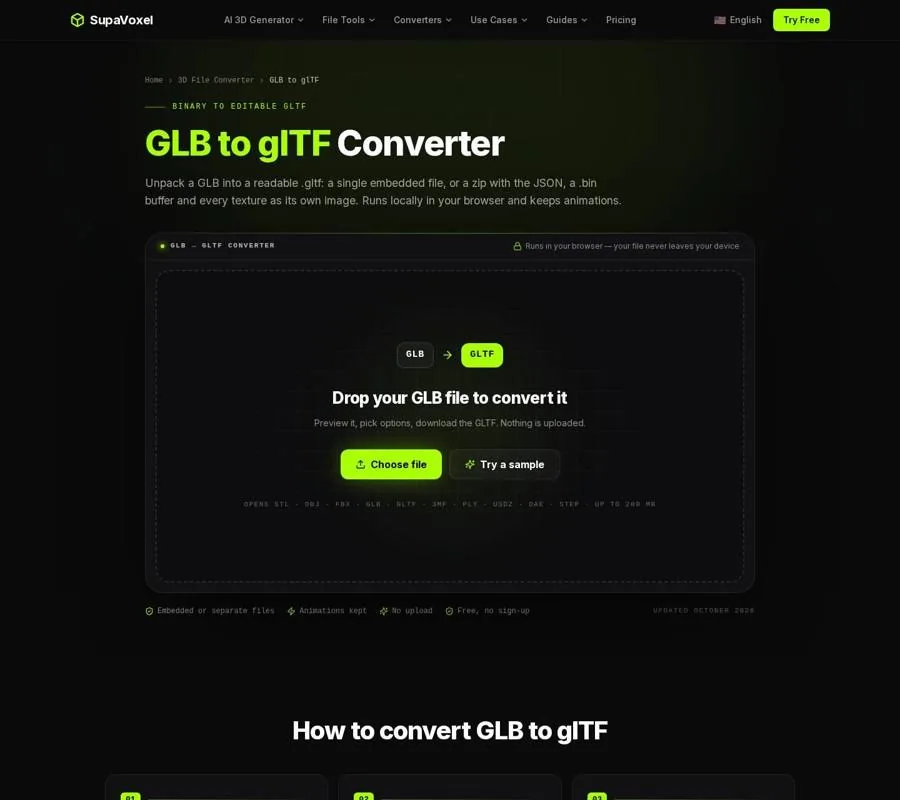
The unpacking tool can produce one embedded glTF or a zip of editable JSON, binary data, and texture images.
If the destination is a 3D printer
GLB is a delivery format, not a dependable print format. It can carry textures and materials for viewing, but STL stores triangle geometry only. If the next step is slicing, use the glTF to STL converter to create a binary STL.
That conversion changes the coordinate and unit conventions for printing:
- glTF uses meters and Y-up.
- The STL output is written in millimeters and can be placed Z-up on the build plate.
- Meshes and node transforms are merged into one triangle list.
- Textures, PBR materials, vertex colors, UVs, and animation clips are dropped.
Watch the output size before downloading. A glTF model authored as 0.3 meters becomes 300 millimeters, while a model authored with an unexpected scale can be much too large or small. The converter provides a scale control and an option to scale the model to 100 mm tall when a size warning appears.
A screen-ready glTF can also be an open shell, contain floating parts, or use single faces for thin surfaces. STL conversion does not automatically close holes or add thickness. Check the result in an STL viewer and repair it before slicing if the mesh is not watertight.
FAQ
Does converting glTF to GLB reduce texture quality?
The texture images are kept in their original image type, such as PNG or JPEG. Their encoded bytes can change during conversion, but the scene keeps its textures and materials. Keep Keep textures enabled if the GLB is intended to retain the original appearance.
Do I need the .bin file if the glTF is embedded?
No. An embedded glTF contains its binary data inside the JSON and can be supplied alone. A separate glTF does need its referenced .bin file. Texture images should also be included so the finished GLB does not lose its surface detail.
Why did the GLB become larger than the source glTF?
A source glTF using Draco or meshopt may be smaller because its geometry is compressed. The converter decodes that geometry and writes uncompressed buffers into the GLB. Compress the completed GLB afterward if the delivery file needs to be smaller.